
Follow this guide to learn how Coriolis can be used to migrate Windows instances that have BitLocker encrypted disks.
BitLocker key protectors
BitLocker key protectors define how the encrypted drives will be unlocked. TPM protectors store the keys on the Trusted Platform Module device and may be used in conjunction with other methods, such as PIN and/or startup keys stored on unencrypted drives, usually USB drives.
The Windows drive is the only partition that may leverage the TPM. In most cases, it will also hold the keys for the other encrypted drives.
If the TPM isn’t available (e.g. due to hardware changes or if the disks have been moved), recovery passwords or keys must be used to unlock the encrypted partitions.
Recommended migration procedure
NOTE: This currently only works when migrating to the platforms below. Support for other destination platforms will be added later:
- SUSE Virtualization
- SUSE KVM
A preconfigured BitLocker recovery password must be specified when initiating the Coriolis transfer. Coriolis will use it to unlock the OS drive during OS morphing, which is performed by a temporary worker VM on the destination cloud.
The following sample calls the WMI API through PowerShell to configure a BitLocker recovery password for the OS drive. Its output is easier to parse than that of the manage-bde command and more convenient to use as part of automated scripts. Follow these steps on the Windows instance that is about to be migrated.
|
1 2 3 4 5 6 7 8 9 10 11 12 13 14 15 16 17 18 19 20 21 22 |
$osVol = gwmi -ns "Root\CIMV2\Security\MicrosoftVolumeEncryption" ` -class Win32_EncryptableVolume ` -filter "VolumeType = 0" $friendlyName = "temporary-password" # User specified passphrases are usually prohibited by group policies, as such # we'll ask Windows to generate a password for us. $result = $osVol.ProtectKeyWithNumericalPassword($friendlyName, $null) if ($result.ReturnValue) { throw "Operation failed, error code: $($result.ReturnValue))" } # Note down the protector ID so that we can remove it later. $result.VolumeKeyProtectorID {CDD2E562-68F8-4917-804D-6A066F3CCFED} # Retrieve the password $result = $osVol.GetKeyProtectorNumericalPassword($result.VolumeKeyProtectorID) if ($result.ReturnValue) { throw "Operation failed, error code: $($result.ReturnValue))" } $result.NumericalPassword 160248-307032-575553-079750-669064-505142-265243-508409 |
When initiating the migration, specify the recovery password like so:
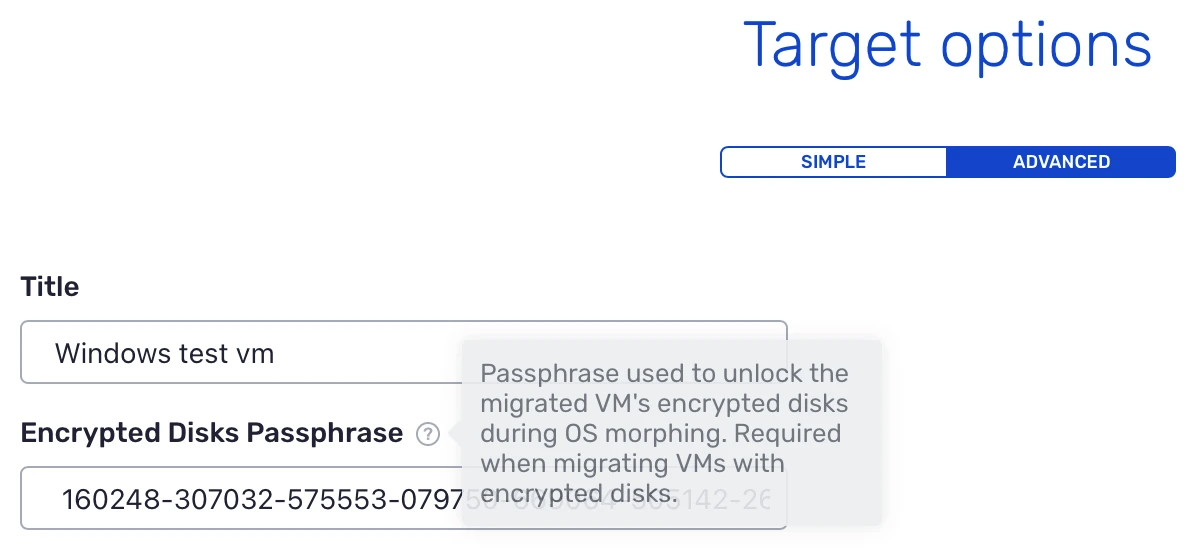
In order for the final VM to be able to launch, Coriolis suspends BitLocker during OS morphing. The final VM reconfigures the TPM protector and resumes BitLocker when booted for the fist time, which occurs immediately after the OS morphing process.
Important: make sure that your Windows minion image has the BitLocker feature installed, otherwise it will not be able to unlock the volume.
|
1 |
Install-WindowsFeature BitLocker |
Feel free to remove the temporary key protector from the source and destination instances after completing the migration.
Alternatives
Suspend BitLocker before initiating the migration
BitLocker may be suspended before initiating the migration. It won’t decrypt the disk, which means that it won’t take long. It simply adds a public key used to automatically unlock the disk.
However, this means that the original disk as well as the migrated disk will be unlocked for a period of time. The advantage is that Coriolis will no longer need the BitLocker recovery password.
OS morphing scripts
Encrypted disks may also be unlocked through user provided OS morphing scripts. Make sure to use the osmorphing_pre_os_mount phase so that the script will be invoked before Coriolis attempts to mount the OS drive.
Subsequent cleanup can be performed by scripts invoked during the replica_first_boot phase.
Only use this approach if the standard procedure is not applicable, for example when using other types of key protectors or if secondary volumes must also be unlocked during os-morphing.
As mentioned before, the OS drive usually holds key protectors for the secondary data drives.