
Coriolis can operate and handle VM migrations, including in restricted deployments, and does not require an Internet connection to carry out the operations, given that a few requirements are met.
This guide describes how to configure and operate Coriolis in environments without outbound internet connectivity (air‑gapped environments). In such systems, several artifacts and repositories must be set up in the local infrastructure and made available in the target cloud.
The main dependencies to consider and self-host are the Cloudbase-init tool and platform-specific drivers, such as the VirtIO drivers, which will be detailed below.
Another consideration is access to the repositories of the guest OS used for the temporary worker, as well as the repositories for the migrated guest OSes and versions. This is to be considered when an HTTP/HTTPS proxy is not available.
Dependencies configuration
For the OSMorphing stage dependencies, you must modify the coriolis.conf configuration file.
From the Coriolis Console, select the following option:
Edit/Inspect Coriolis Configuration
In the CLI, run the following command to start modifying the coriolis.conf file.
$ vim /etc/coriolis/coriolis.conf
# nano editor is also available
If OpenStack is used as the destination, locate the following section.
[openstack_migration_provider]

Scroll down until you find the following parameters:
- windows_virtio_iso_url
- Parameter name available on all KVM-based platforms that use the VirtIO drivers.
- windows_vmware_tools_url
- For VMware as the target, refer to the VMware plugin page for more details.
- cloudbaseinit_x64_url
- cloudbaseinit_x86_url
- This is optional for when a 32-bit Windows guest OS is migrated, otherwise the option can be ignored.

Modify these URLs so they point to the location where you host the required files.
After this, save the file and exit the CLI. When prompted to restart the Coriolis containers, select y (Yes).
The process is the same for the other providers, by identifying the correct section in coriolis.conf with the format [{platform}_migration_provider].
Proxy configuration
If the infrastructure uses an HTTP/HTTPS Proxy, it can be configured so that both the Coriolis virtual appliance and its temporary workers use it.
Setting up a proxy connection for workers
From within the Coriolis console, you need to select option 3) Edit/Inspect Coriolis configuration
Then, proceed to edit the Coriolis configuration file and look for the [proxy] section.
$ vim /etc/coriolis/coriolis.conf

After modifying these details, you can save the changes and exit the editor.
This will also further allow the Linux workers so that the proxy configured will be used.
NOTE! For Windows workers to use a proxy, the proxy configuration should be set in the Windows temporary worker template images.
NOTE! The no_proxy variable can contain multiple hosts, comma-separated. Wildcard entries are not supported.
Setting up a proxy for the Coriolis appliance
In case the proxy is needed to provide internet for the Coriolis appliance (such as the need for internet while undergoing appliance upgrades) or you need it to get access to the environments, that means the environments are not accessible without a proxy being set.
NOTE! You should avoid adding a proxy if you can already access the environments, as it may cause conflicts with the current connections.
To configure this, you need to go to the Coriolis console and select the option 5) Configure/Restore Appliance Proxy Settings, as shown in the screenshot below.
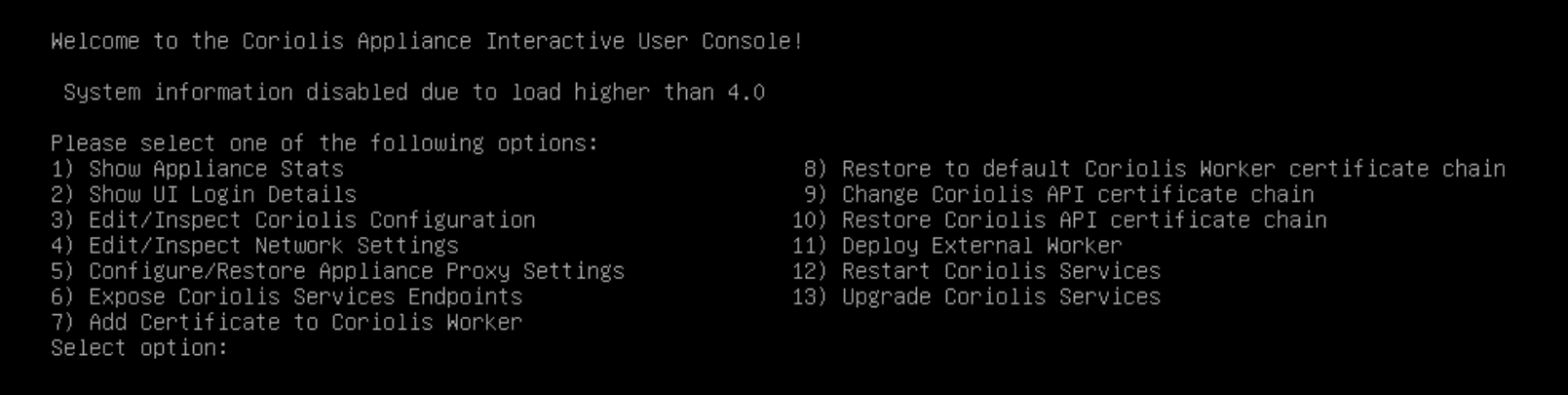
Once the console option has been selected, the proxy settings can be configured by editing the file located at: /etc/coriolis/proxy-settings.ini.
Proxy parameter definitions:
proxy_host – Set to true to enable proxy settings on the appliance host (required for system upgrades or apt updates).
proxy_worker – Set to true to enable proxy settings for the coriolis-worker container (required if specific Endpoints are only accessible through a proxy).
Setting proxy_host does not affect proxy_worker and vice versa.
Setting both variables to false will remove proxy configurations from both the host and the coriolis-worker container.
|
1 2 3 4 5 6 7 8 9 10 |
[proxy] proxy_host = true proxy_worker = true # Define your proxy endpoints http_proxy = http://10.0.0.1:3128 https_proxy = http://10.0.0.1:3128 # Specify additional exclusions no_proxy = |
Modify the file variables as required for your network architecture, as in the example below:
The “no_proxy” variable is automatically populated by the Coriolis appliance with the following values:
- The appliance’s main IP address;
- localhost;
- 127.0.0.1
If additional exclusions are required, you may manually append them to the no_proxy line without affecting the automatic defaults. For example, adding no_proxy = example.com in the proxy-settings.ini will make Coriolis set the following value:
<appliance_ip>,localhost,127.0.0.1,example.com.
Other considerations
As part of the OS Morphing stage, Coriolis also installs some packages as follows:
- For the Linux temporary worker:
- lvm2
- psmisc
These packages can be preinstalled by the user in the Linux temporary worker, and then Coriolis will no longer attempt to install these from the corresponding temporary worker Linux repositories.
- For the migrated Linux guest OS:
- refer to the plugin page of the target platform. The usual packages for KVM-based platforms would be cloud-init and qemu-guest-agent.
- Coriolis will not attempt to install these packages if they are already present; they should be installed on the source VM before migration. This scenario should be considered if the target platform has no access to the Linux repositories.